
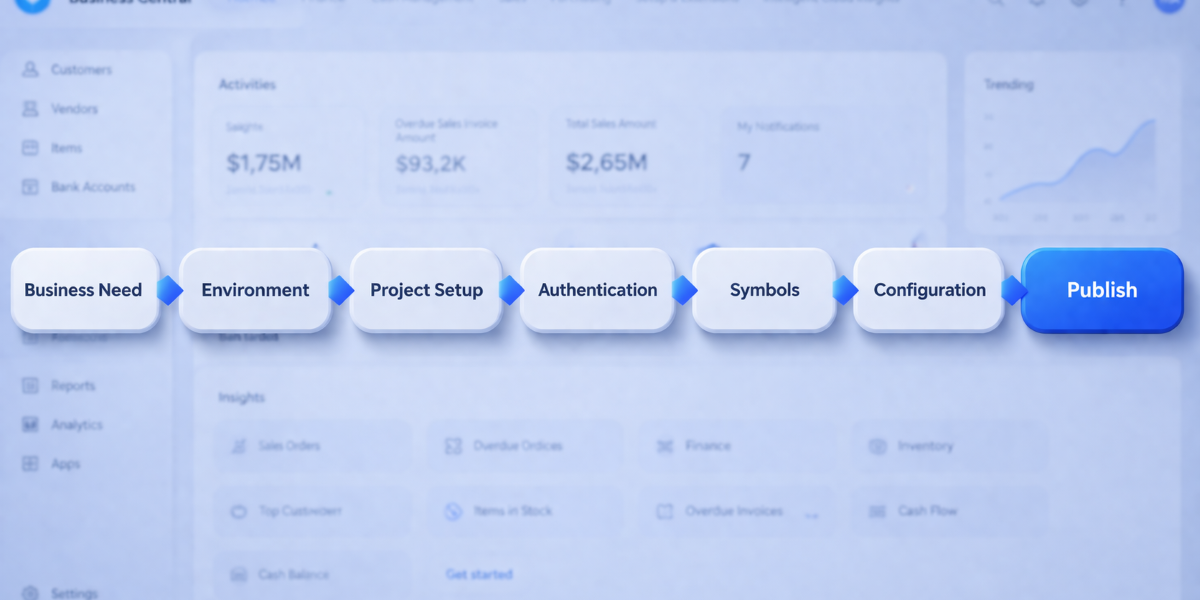
Build and Publish a Business Central Extension Using AL: Complete Developer Guide
Microsoft Dynamics 365 Business Central is more than just an ERP—it’s a highly extensible platform designed for modern businesses. With the AL programming language and Visual Studio Code, developers can create powerful extensions that tailor Business Central to unique business needs.
In this guide, we walk through a complete end-to-end process of building and publishing a Business Central extension using AL. This includes environment setup, authentication, symbol download, GitHub Copilot-assisted development, and deployment.
🎥 Watch the Full Demo
Why Extend Business Central?
Every business has unique requirements. While Business Central offers strong out-of-the-box capabilities, extensions allow you to:
- Customize workflows without modifying core code
- Integrate with external systems like eCommerce platforms
- Automate repetitive business processes
- Enhance reporting and data handling
- Build scalable, upgrade-safe solutions
Key Advantage
Extensions are upgrade-safe, meaning Microsoft updates won’t break your customizations.
Business Scenario: Online Marketplace Connector
In this demo, we build a simple extension for an Online Marketplace Connector.
- Capture marketplace orders
- Convert them into Business Central sales orders
- Track order status lifecycle
- Manage integration setup
What We Build
- Marketplace Order Tables
- Order Processing Codeunit
- Setup Page
- Order List and Card Pages
- Status Enum
Step 1: Identify Business Need
We start with a clear requirement: automate marketplace order processing.
Why It Matters
Without this, businesses manually re-enter orders, leading to delays and errors.
Step 2: Prepare Business Central Environment
Open Business Central Admin Center and locate your sandbox environment.
- Environment Name: Demyst365
- Type: Sandbox
- Region: Cloud
Note: Refer to our separate video on creating a sandbox environment in Business Central.
Step 3: AL Language Overview
The AL language is used to develop extensions in Business Central.
- Object-based development (Tables, Pages, Codeunits)
- Strong integration with Business Central
- Supports events and extensibility
Learning Tip
Refer to Microsoft AL Language documentation to master development concepts.
Step 4: Install AL Language Extension
In Visual Studio Code:
- Go to Extensions
- Search: AL Language
- Install Microsoft AL extension
Step 5: Create Project Using AL:Go!
Open Command Palette:
- Press Ctrl + Shift + P
- Select AL: Go!
This initializes your project.
Step 6: Select Environment
Choose:
- Microsoft Cloud Sandbox
- Select your environment: Demyst365
Step 7: Authentication
Sign in using your Microsoft account.
Why This Step Matters
This connects VS Code to your Business Central environment securely.
Step 8: Download Symbols
Symbols represent Business Central objects.
- Download happens automatically
- Stored in .alpackages folder
Importance
Without symbols, your extension cannot reference standard BC objects.
Step 9: Review Project Structure
Your project includes:
- app.json
- launch.json
- src folder
- .alpackages
Step 10: Configure app.json
Update:
- Name
- Publisher
- Version
- ID
Best Practice
Use unique IDs to avoid conflicts.
Step 11: Configure launch.json
Important settings:
- environmentType: Sandbox
- environmentName: Demyst365
- startupObjectId: 50100
What is startupObjectId?
This defines which page opens after publishing. In this demo, it opens the Setup Page.
Step 12: Define Business Objects
Create:
- Enum for order status
- Tables for orders and lines
- Pages for UI
- Codeunit for processing
Structure Example
- Table: Marketplace Order Header
- Page: Marketplace Orders
- Codeunit: Marketplace Management
Step 13: Use GitHub Copilot
Instead of writing everything manually:
- Write prompt describing business logic
- Let Copilot generate AL code
Example Prompt
Create a codeunit to convert marketplace orders into Business Central sales orders.
Step 14: Debugging and Error Handling
Use:
- F5 → Run with Debugging
- Breakpoints
- Error messages
Example
If Customer No. is missing, show validation error.
Step 15: Publish Extension
Press F5:
- Builds extension
- Publishes to sandbox
- Opens Business Central
Step 16: Validate in Business Central
Search:
- OMO Setup
- Marketplace Orders
Test functionality.
Business Value
- Eliminates manual work
- Improves accuracy
- Enables automation
- Scales operations
How INFOC Helps
At INFOC, we help organizations:
- Design scalable extensions
- Implement integrations
- Enable EPM and BPM solutions
- Optimize Business Central performance
Final Thought
With the right tools and approach, Business Central becomes a powerful platform for innovation—not just operations.